After confirming and accessing the subscription the customer has requested to cancel, select the 'Cancel subscription' option on the top right of the subscription page.
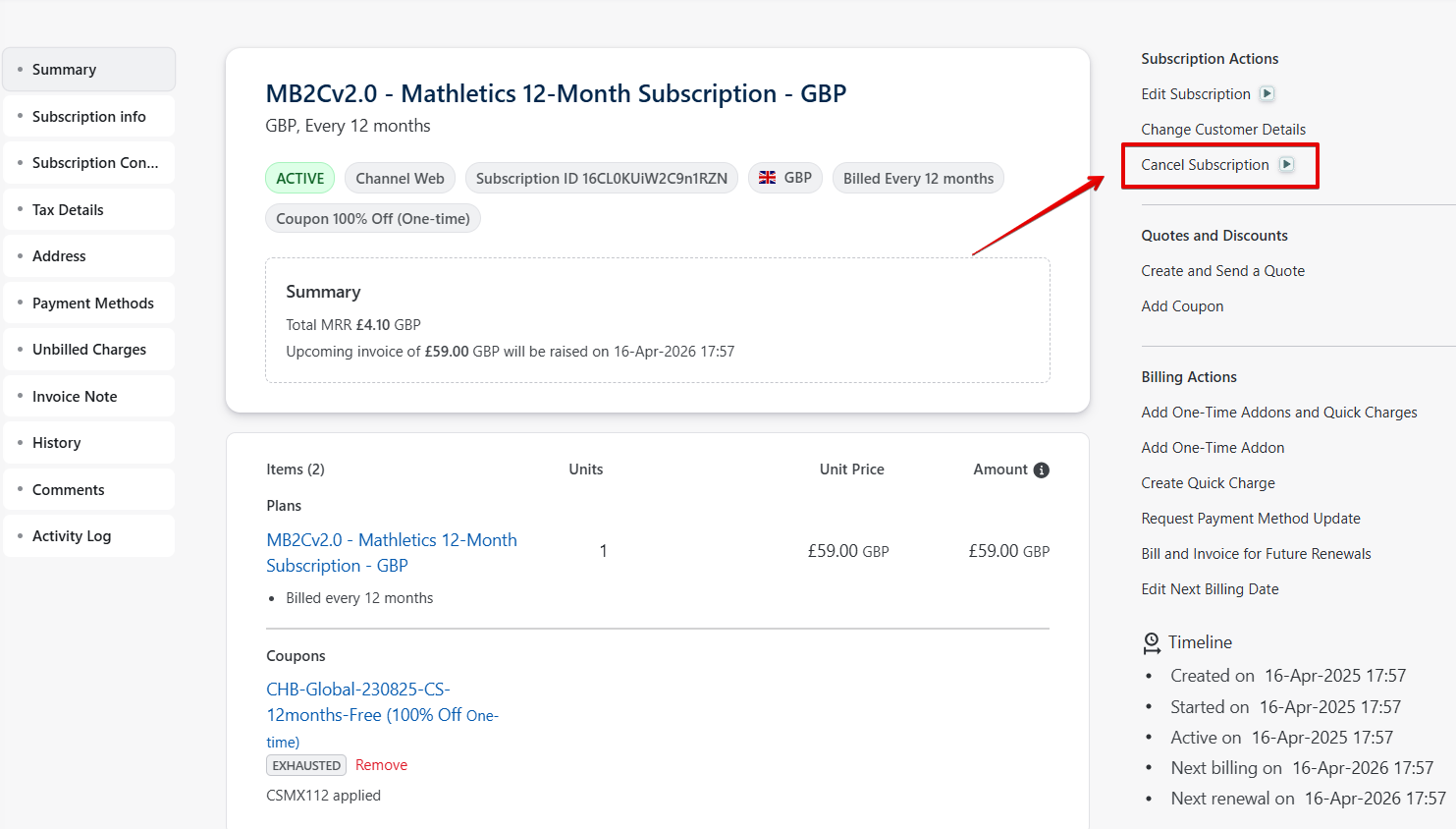
Cancelling Subscription
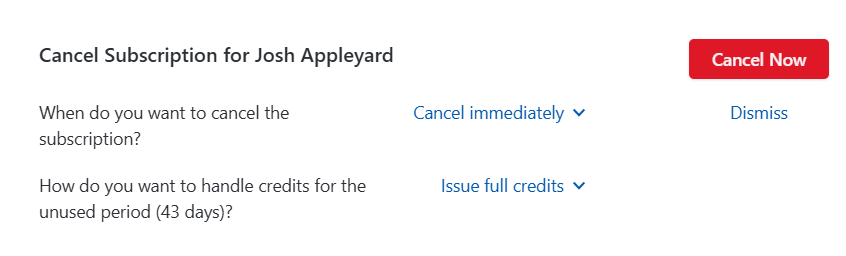
If the customer would like to cancel but keep their remaining access select 'Cancel at the end of current term' and then 'Schedule Cancellation'. This will cancel the customers next renewal but keep the current access active until the next renewal date.

Cancelling subscription and issuing refund
If a customer is requesting to cancel their subscription and receive a refund follow the same initial steps as above but instead of selecting 'Schedule Cancellation', change this to 'Cancel Immediately' and then 'Issue full credits' then select 'Cancel now'.
Issuing a partial refund
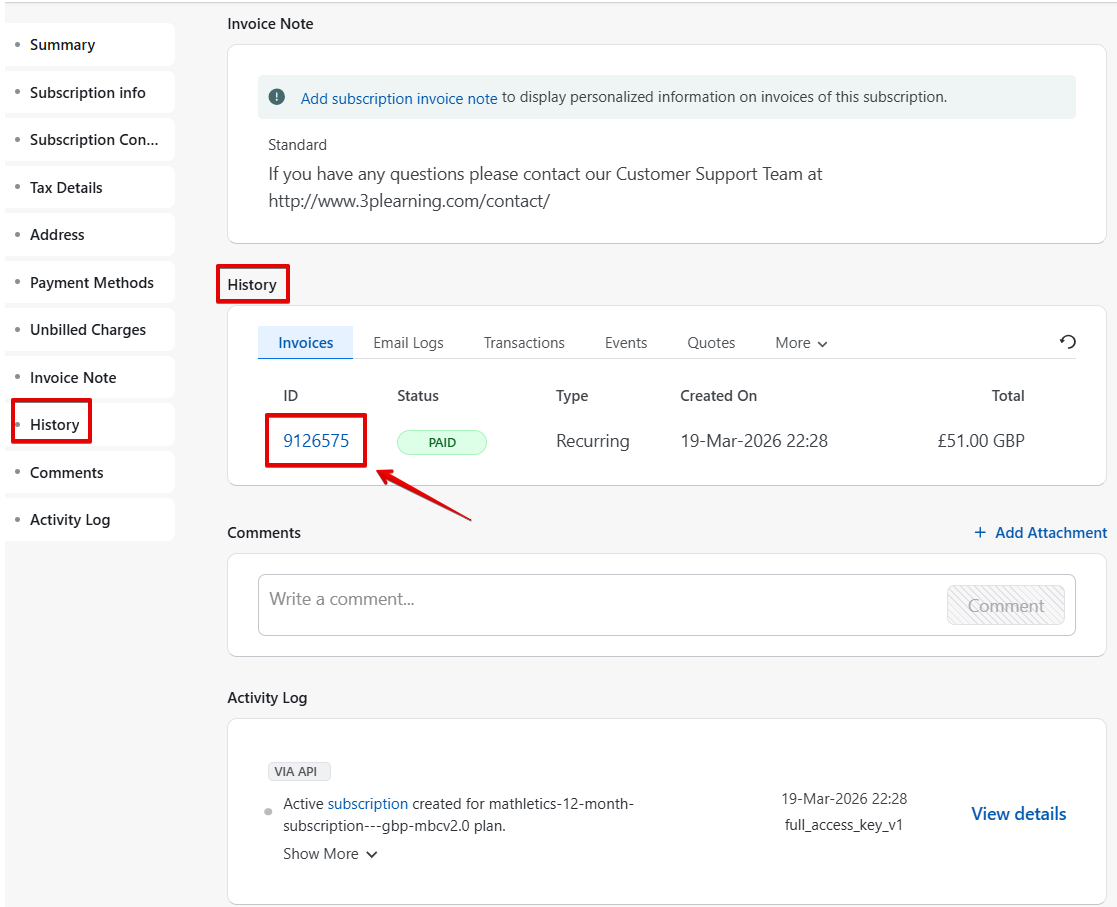
To issue a partial refund on a specific transaction, firstly select 'History' or scroll to this section to view all customer transactions. Then select the ID number of the transaction you are issuing the refund for.
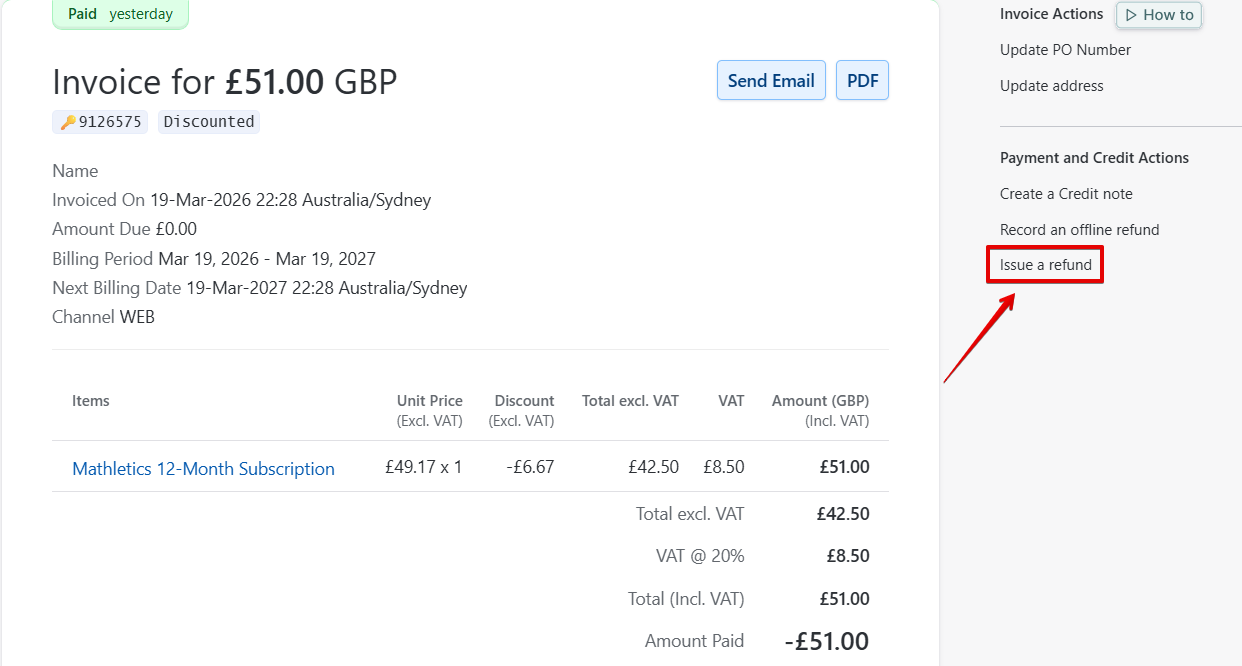
Then select 'Issue refund' in the top right corner of the page.
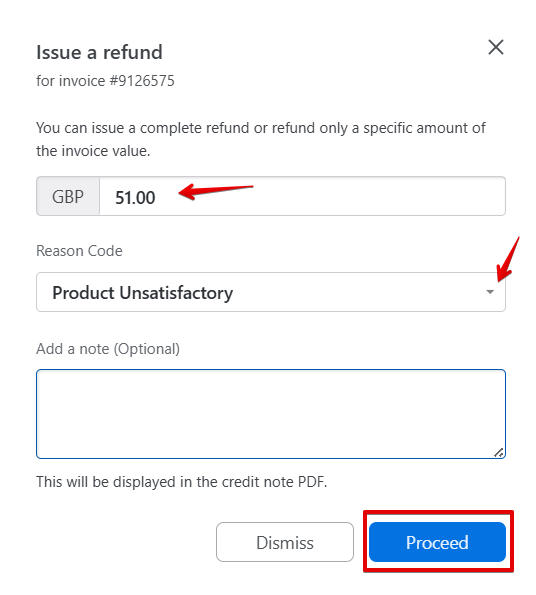
To proceed with issuing the refund:
- Select the amount
- The reason for issuing the refund
- And then add a note (Include your initials and the reason for issuing the refund in more detail).
- To complete the refund, select 'Proceed'.
Was this article helpful?
That’s Great!
Thank you for your feedback
Sorry! We couldn't be helpful
Thank you for your feedback
Feedback sent
We appreciate your effort and will try to fix the article